Embed YouTube Videos

Add YouTube videos to descriptions using the WYSIWYG editor

How It Works

All descriptions on BlitzGrok — courses, modules, and topics — use a WYSIWYG editor with a dedicated YouTube button. Click the YouTube icon in the toolbar, paste any YouTube URL, and the video is embedded automatically. No manual iframe code needed.

Any YouTube URL works. The button accepts watch?v=, youtu.be, /embed/, and /shorts/ formats — no manual URL conversion required.
For general editor features and formatting help, see the Content Formatting guide.

Step-by-Step

1

Open the editor and click the YouTube button

Open the edit form for your course, module, or topic. In the WYSIWYG toolbar, click the YouTube button.
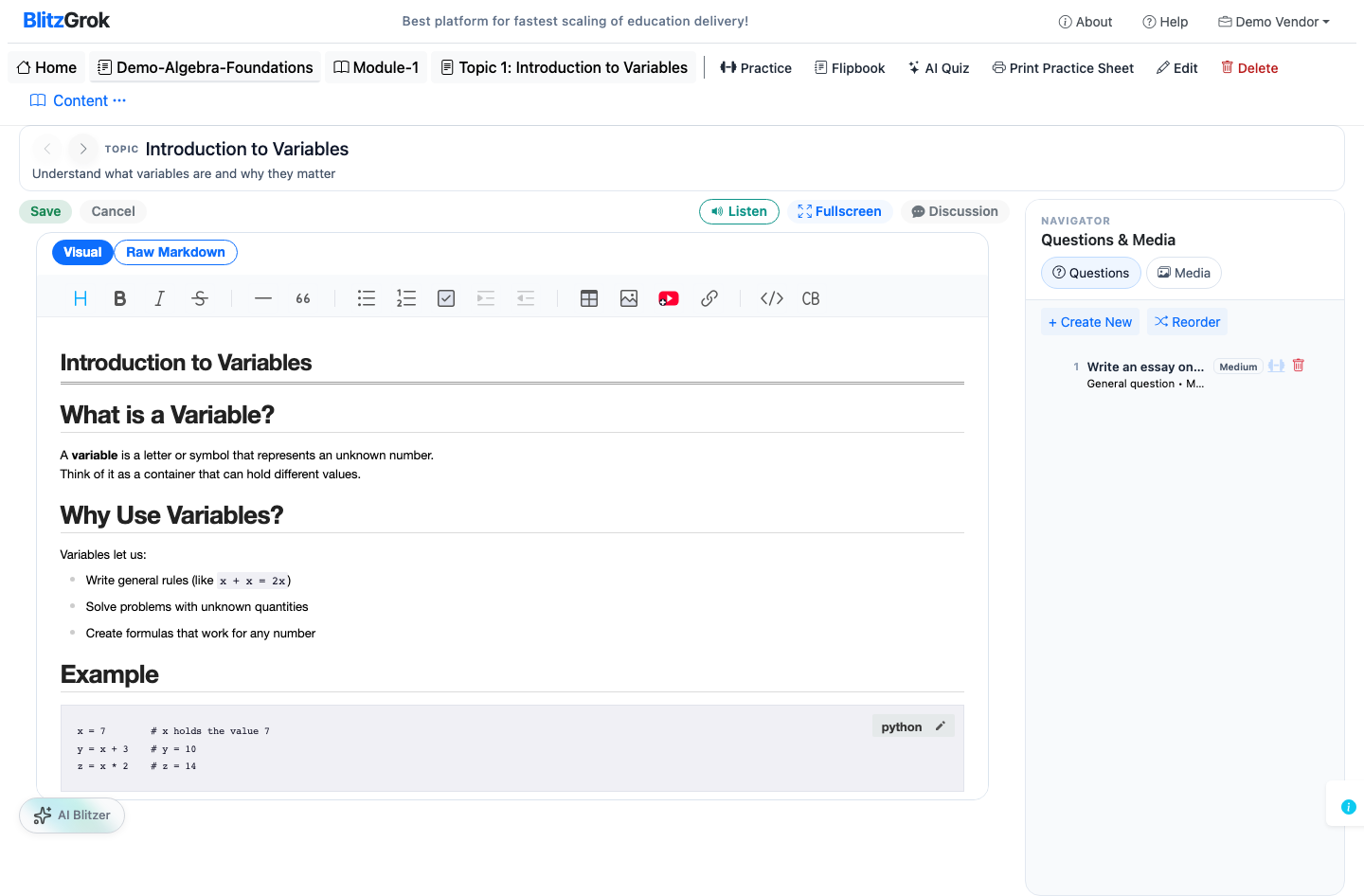
WYSIWYG editor with YouTube button in toolbar
The YouTube button in the WYSIWYG editor toolbar
2

Paste your YouTube URL

Paste any YouTube link into the dialog — a standard watch URL, a shortened youtu.be link, a Shorts link, or an embed URL. The button handles conversion automatically.
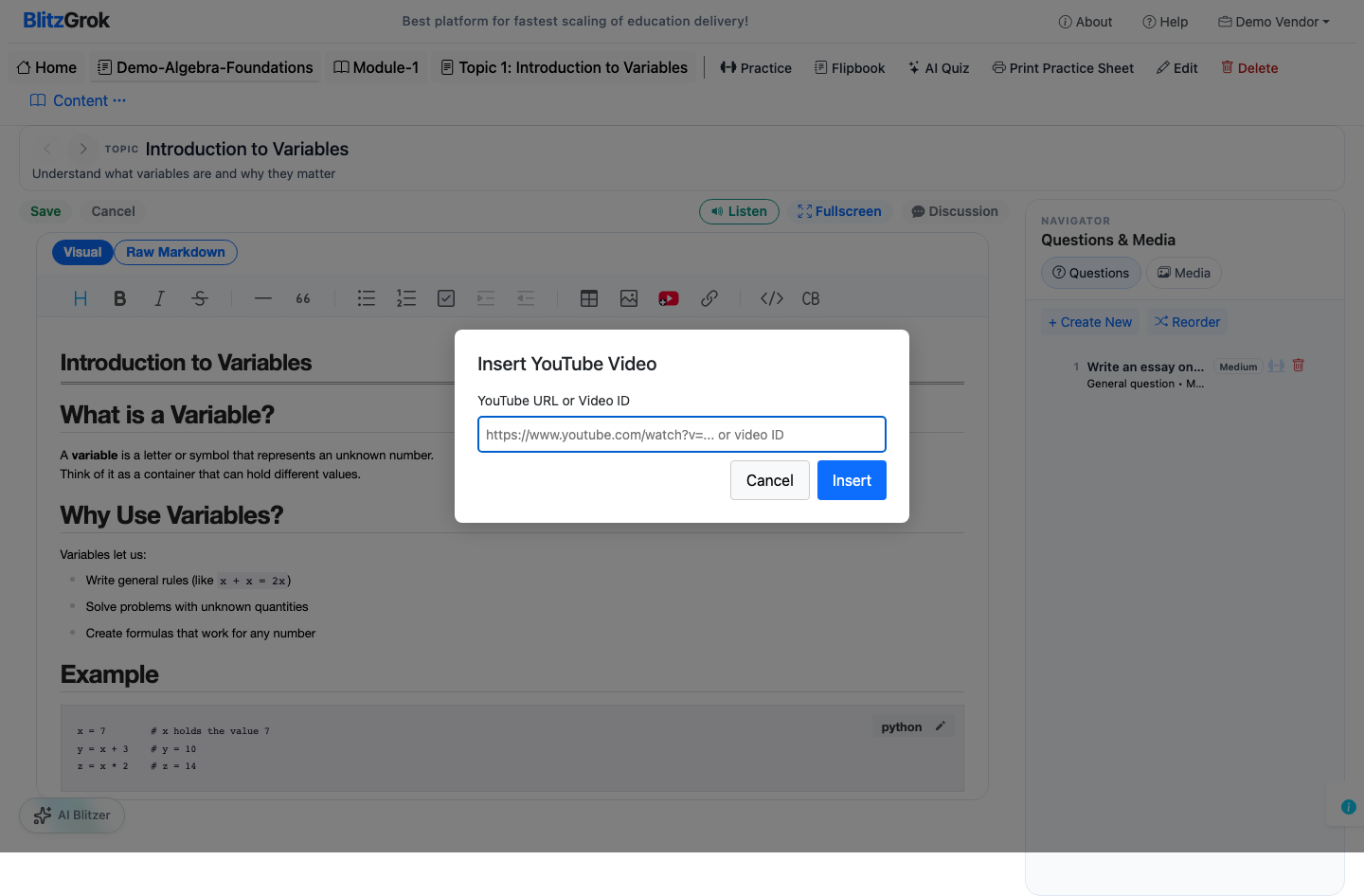
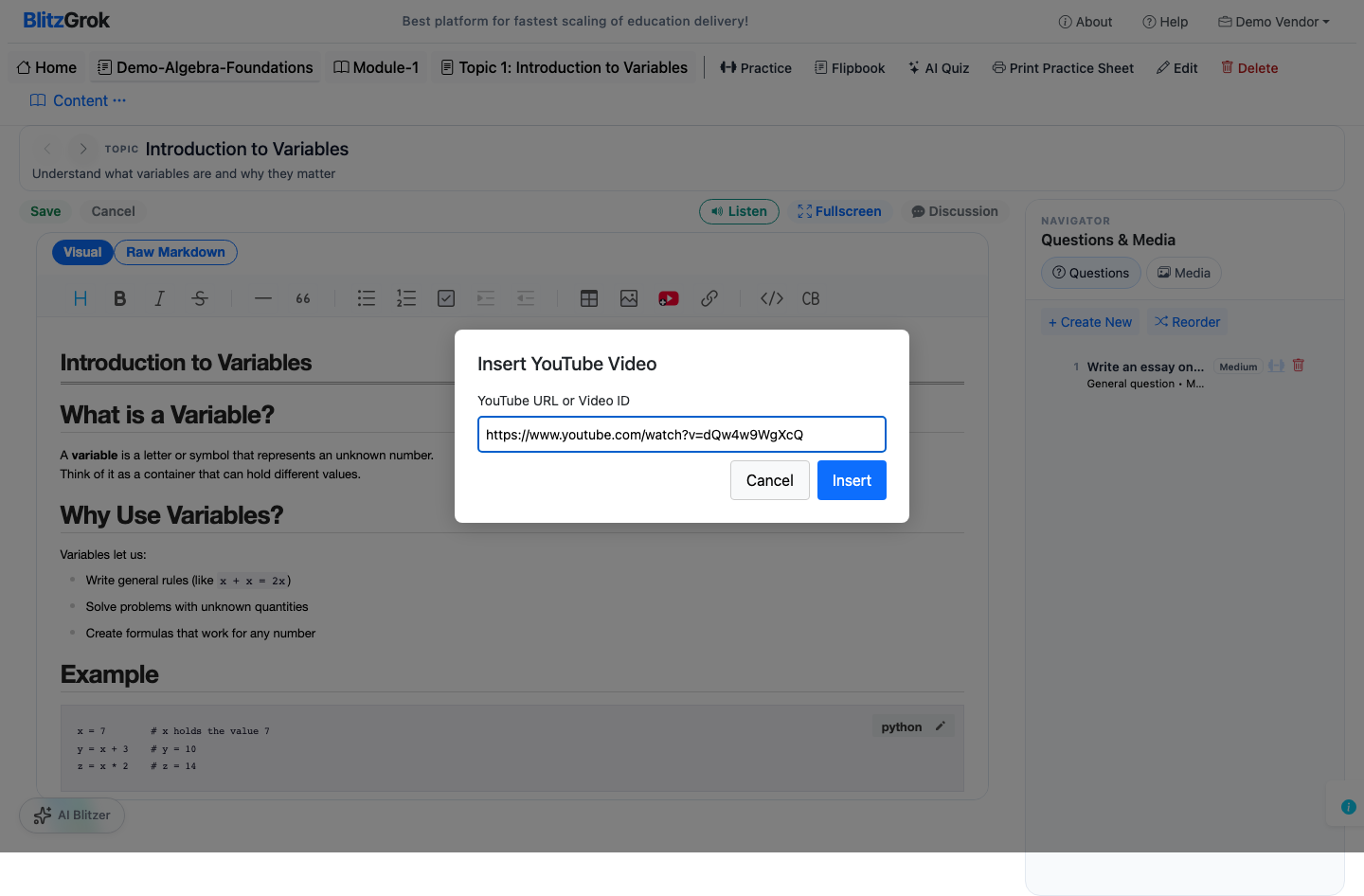
YouTube URL dialog after clicking button
The YouTube URL dialog opens after clicking the button
YouTube URL entered in dialog
Paste any YouTube URL and submit
3

Save and view

The editor inserts the embed automatically. Save your changes and view the page — the video renders inline in the description.
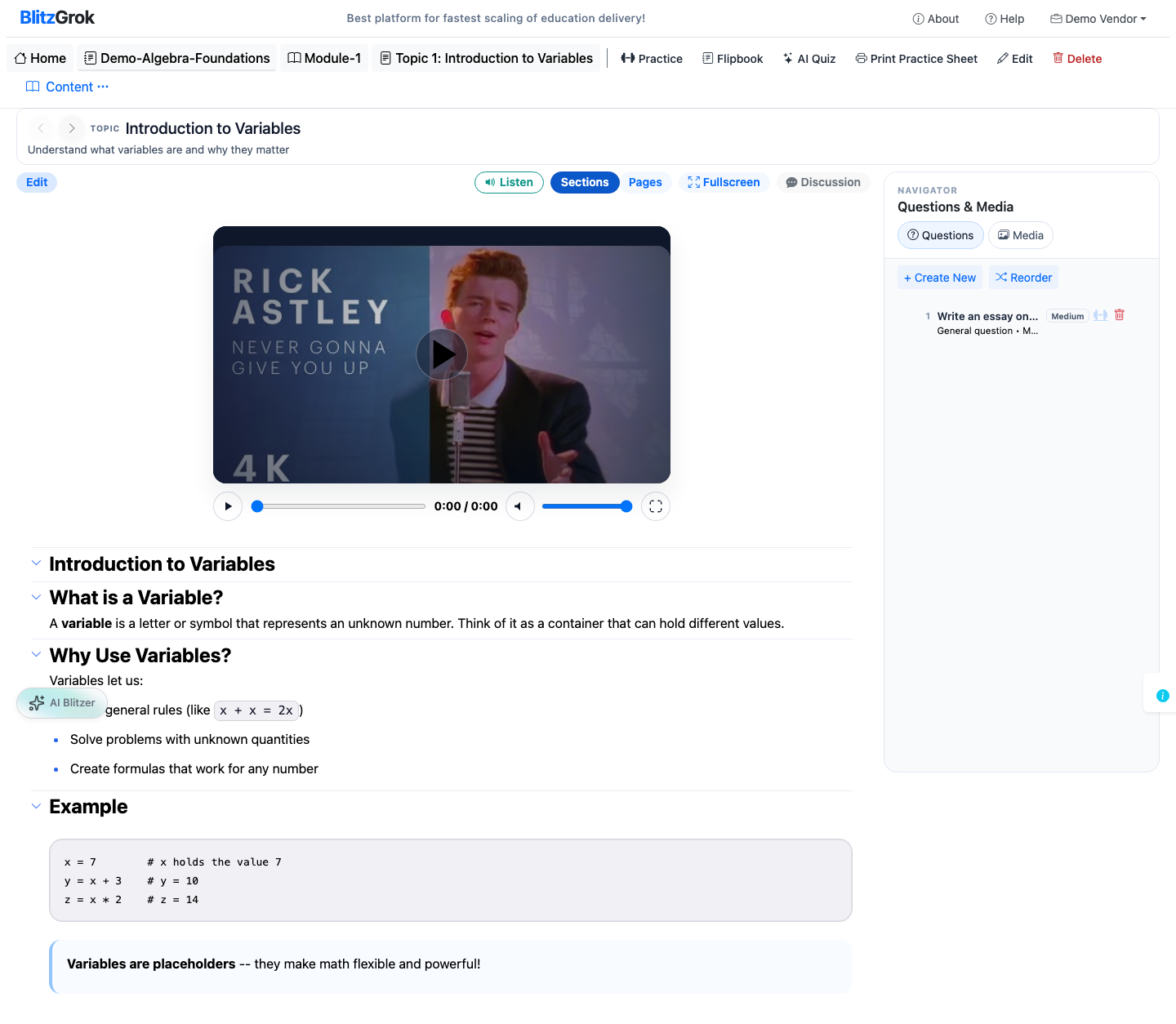
Video rendered in description
The embedded video appears inline in the course description

Troubleshooting

  • Video doesn't show: Make sure the YouTube video is public or unlisted. Private videos cannot be embedded.
  • Non-YouTube embeds: BlitzGrok only supports YouTube embeds. Other platforms are stripped for security.
  • Button not visible: The YouTube button is in the WYSIWYG toolbar alongside formatting controls. If you don't see it, check you're in the WYSIWYG view mode rather than Markdown Raw mode.
Questions about embedding videos?

We're here to help

Contact Us