Educator Guide

Register, create courses, configure assessments, set purchase options, and publish on BlitzGrok
What is an Educator?

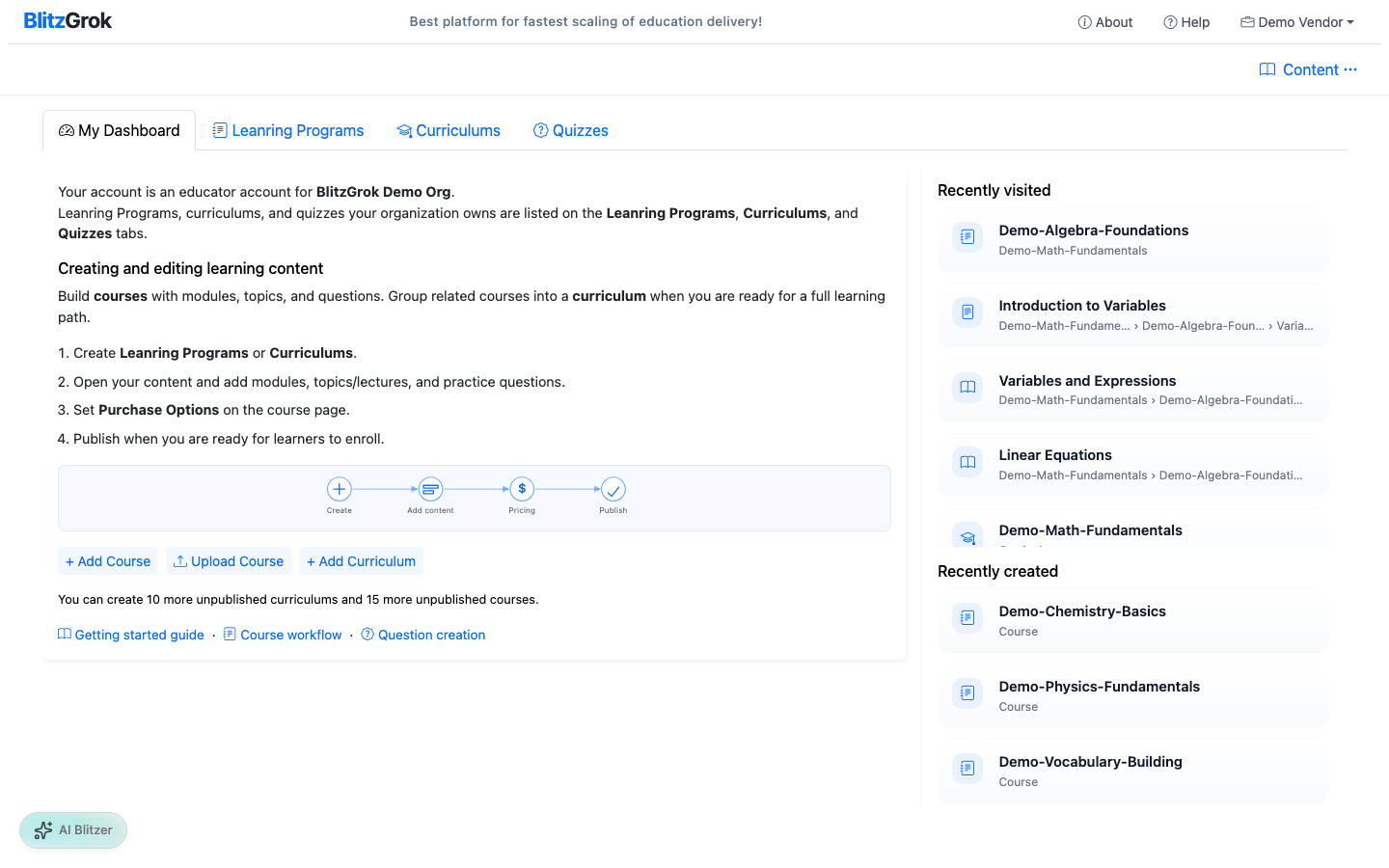
Educator dashboard overview
Your educator dashboard with all management tools
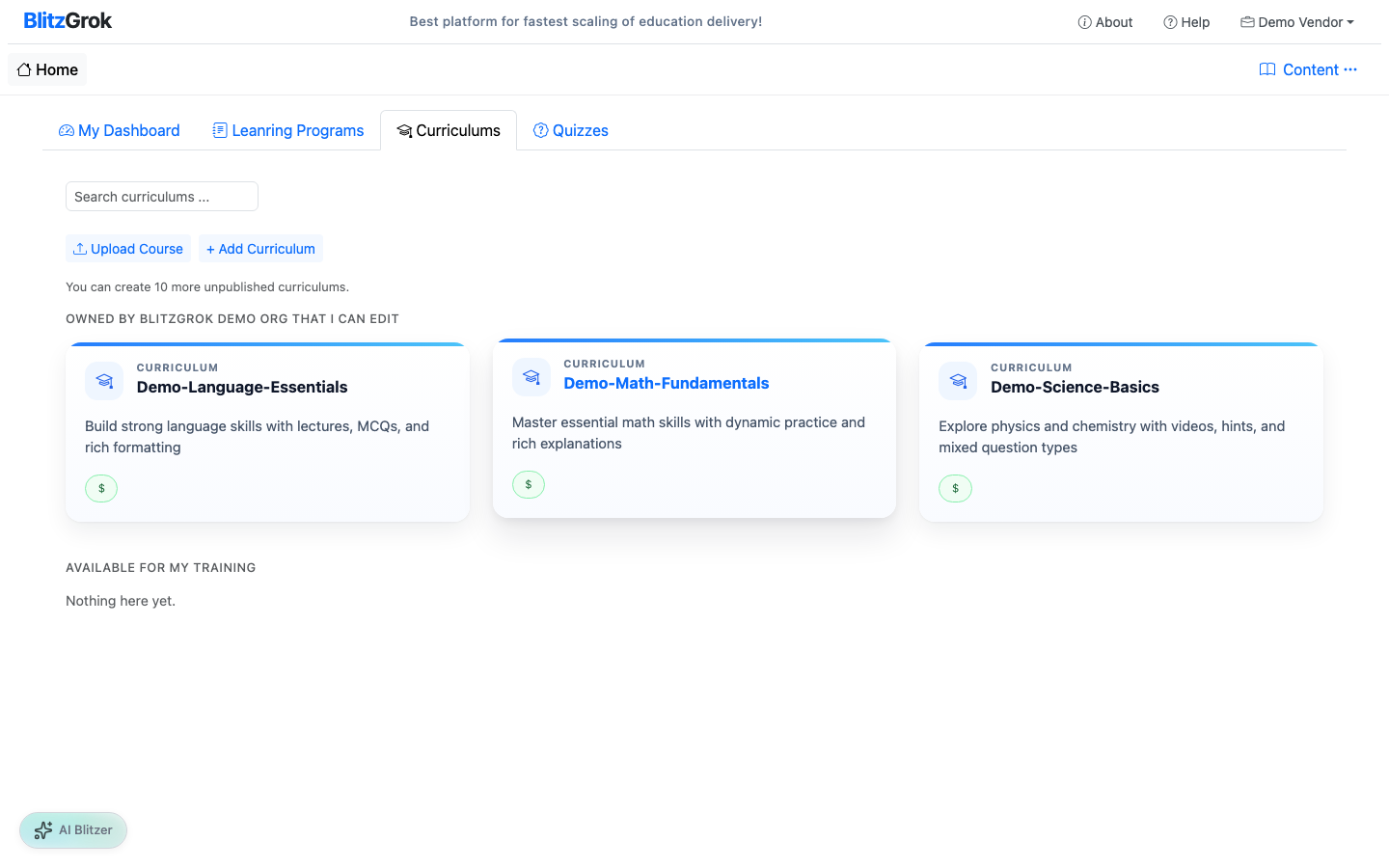
Curriculum management
Manage your curriculums and courses

Educators are content creators on BlitzGrok. As an educator, you can:

  • Create courses with modules, topics, and questions
  • Design dynamic questions with variable generation
  • Integrate diagrams and visual content
  • Track student progress and engagement
  • Build reusable resources for your content

Quick Start Steps

1

Register

Educator accounts are organizational accounts for creating and publishing content.
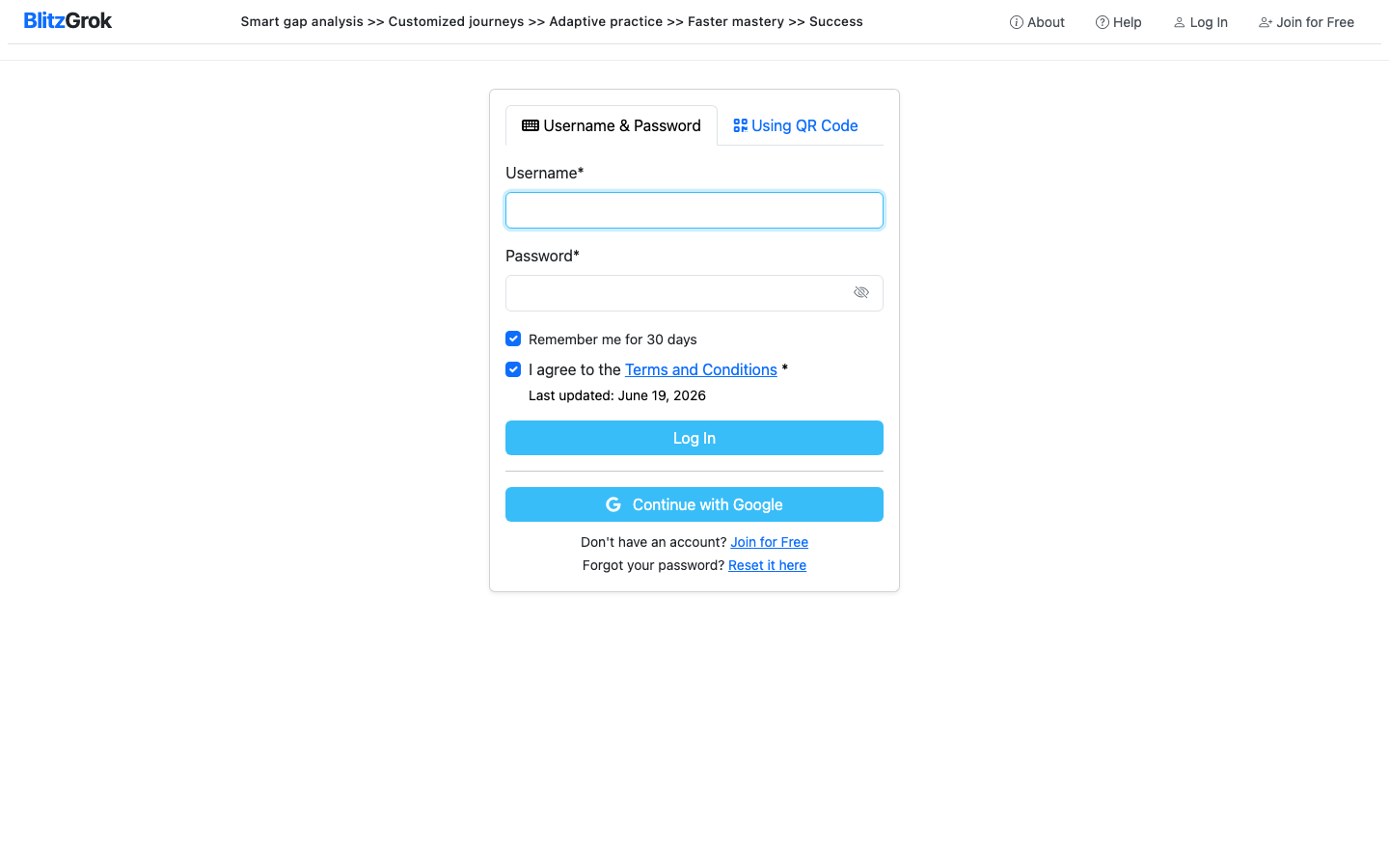
Login page
Log in with your educator account
  • Go to Educator registration
  • Sign up with email or continue with Google
  • After registration, access your Educator dashboard to start building
Register as Educator
2

Create Educational Content

Build courses with modules, topics, and dynamic practice questions.

  • Click Add Course from your courses page
  • Organize with Modules & Topics or use Topics Only
  • Add practice questions with variable-based dynamic generation
  • Integrate diagrams, images, and media to enrich learning
3

Set Purchase Options

Configure how learners access your content — free, one-time purchase, or subscription.

  • Open your course page and click Purchase Options
  • Set pricing — free, one-time, or subscription
  • Save your purchase options to apply them to the course
Course Workflow Guide
4

Configure Assessments

Set up graded evaluations with flexible question selection and scoring.

  • Choose Quiz Mode (auto-scored) or Essay Mode (manual grading)
  • Select questions from three sources — topic practice, AI-generated MCQs, and course questions
  • Configure marks, pass percentage, and duration
  • Optionally award certificates on passing
Assessment Configuration Guide
5

Publish

Make your course available to learners with one click.
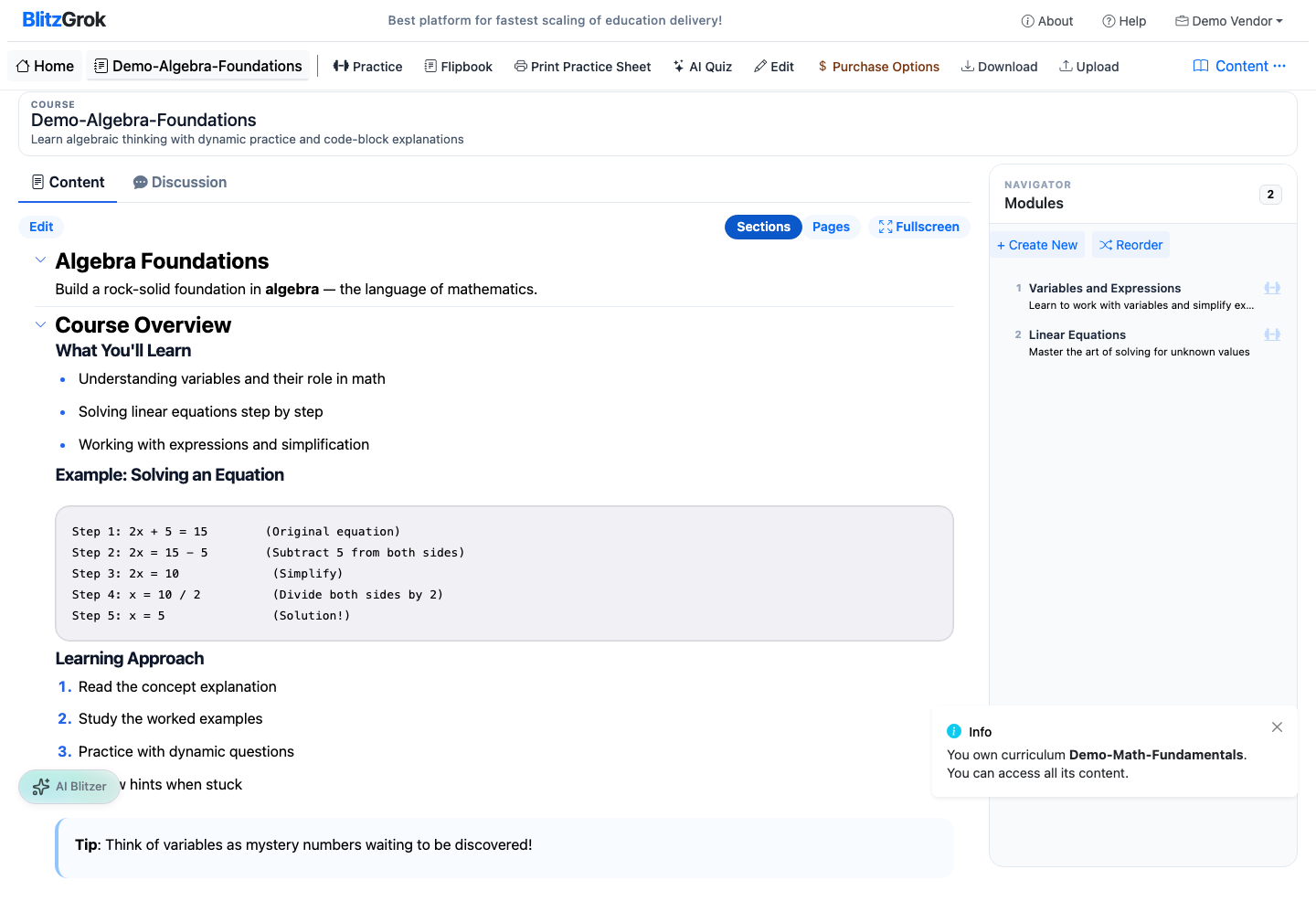
Publish course button
Click Publish to go live
  • Review your course — content, pricing, and assessments
  • Click Publish to make it discoverable by learners
  • Unpublished changes can be edited freely; published content may have editing restrictions after purchases
Course Workflow Guide

Detailed Guides

Choose a workflow to follow

Best Practices

  • Start small — Build one topic completely before expanding
  • Use variables — Dynamic questions provide better practice
  • Test thoroughly — Try your questions as a student would
  • Organize logically — Structure content from basics to advanced
  • Add context — Include descriptions and explanations
Questions about creating content?

We're here to help you get started

Contact Us